Add a daily KJV verse to WordPress — no plugin needed
WordPress can display a daily King James Version verse without installing a single plugin. Paste one line of HTML into a Custom HTML block (or a sidebar widget) and the verse updates itself every day.
What it looks like
Live preview of the daily verse in the paper theme. Light and dark themes are available in the builder.
The code to paste into WordPress
<!-- Bible Sundays KJV verse widget — free, public domain -->
<iframe src="https://www.biblesundays.com/embed/verse?mode=daily&theme=paper&via=widget" title="KJV Bible Verse — Bible Sundays" width="100%" height="240" style="border:0;max-width:560px;" loading="lazy"></iframe>
<a href="https://www.biblesundays.com/?utm_source=widget&utm_medium=embed&utm_campaign=widget-widget" target="_blank" rel="noopener" style="display:block;margin-top:6px;font-size:12px;line-height:1.4;color:#6b7280;text-decoration:none;text-align:center;max-width:560px;">biblesundays.com</a>
Goes into a Custom HTML block, a Custom HTML sidebar widget, or an Elementor HTML element.
Video tutorial: adding the Bible verse widget to WordPress
A silent 26-second screencast of the exact three screens. The full transcript is below the player if you would rather read it.
Transcript
- 0:00What you are installing
- Add a free KJV Bible verse widget to WordPress. The verse is public domain King James text, there is no plugin to install, no account to create, and the whole job takes about two minutes.
- 0:04Step 1 — Add a Custom HTML block
- Edit the page or post where you want the verse and click the blue plus inserter. Type “Custom HTML” into the search box and insert the block. If you are on the Classic Editor, switch to the Text tab instead. For a sidebar, go to Appearance, then Widgets, and add a Custom HTML widget there.
- 0:11Step 2 — Paste the iframe exactly as copied
- With the block on the HTML tab, paste the embed code you copied from this page. Do not reformat it or re-type the quotation marks — WordPress passes the markup through unchanged. Leave the width at one hundred percent so the widget stays responsive on phones.
- 0:18Step 3 — Publish and check the live page
- Click Preview to confirm the verse renders, then hit Update or Publish. The verse rotates on its own each day, so you never have to edit the page again.
- 0:23That's it
- Your verse now updates itself every day. You can change the theme, the size and the verse mode in the widget builder at biblesundays.com/embed.
Step by step with screenshots: adding the verse widget to WordPress
Three screens, about two minutes, no plugin or account. Each screenshot shows exactly what you should be looking at in WordPress.
- 1
Add a Custom HTML block
Edit the page or post, click the blue + inserter, type “Custom HTML” in the search box and insert the block. On the Classic Editor, switch to the Text tab instead; for a sidebar, go to Appearance → Widgets and add a Custom HTML widget.
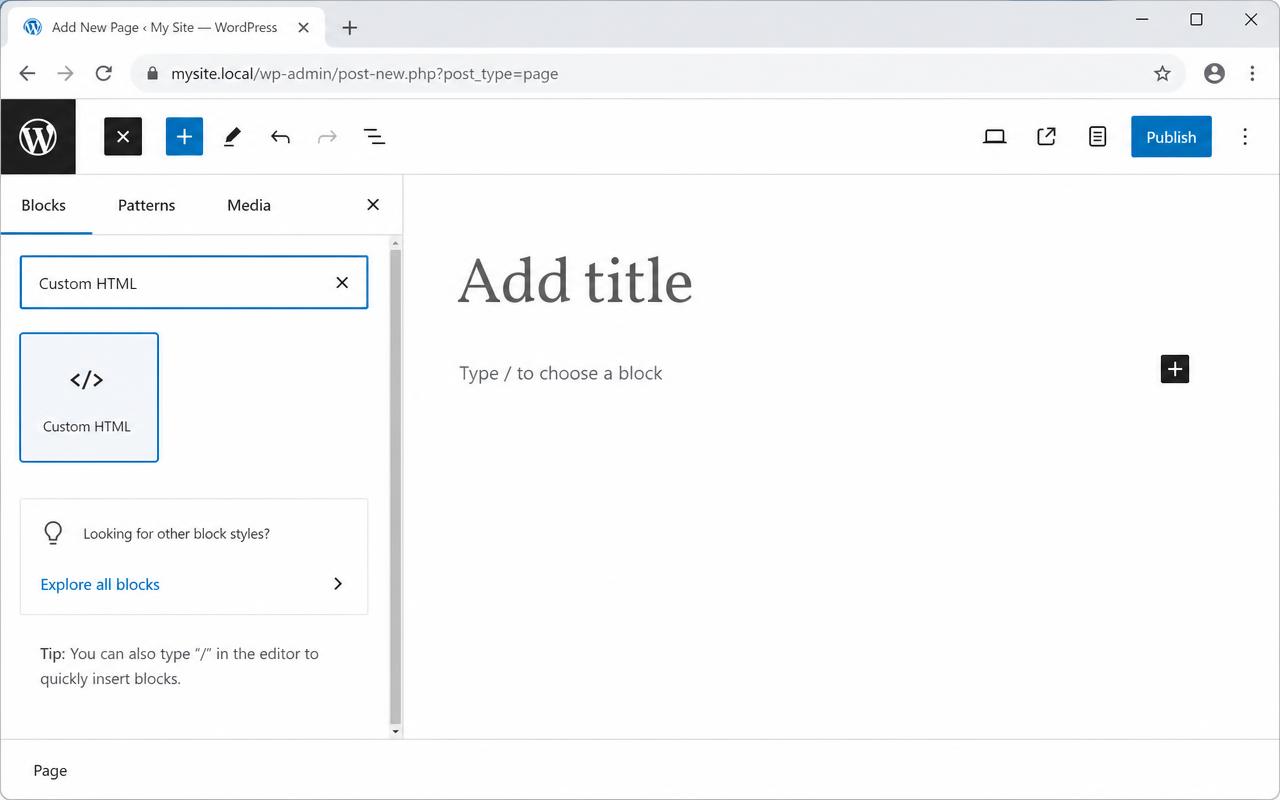
The block inserter with “Custom HTML” searched and selected. - 2
Paste the iframe exactly as copied
With the block on the HTML tab, paste the embed code. Do not reformat or re-type the quotation marks — WordPress passes the markup through unchanged. Leave width at 100% so it stays responsive.
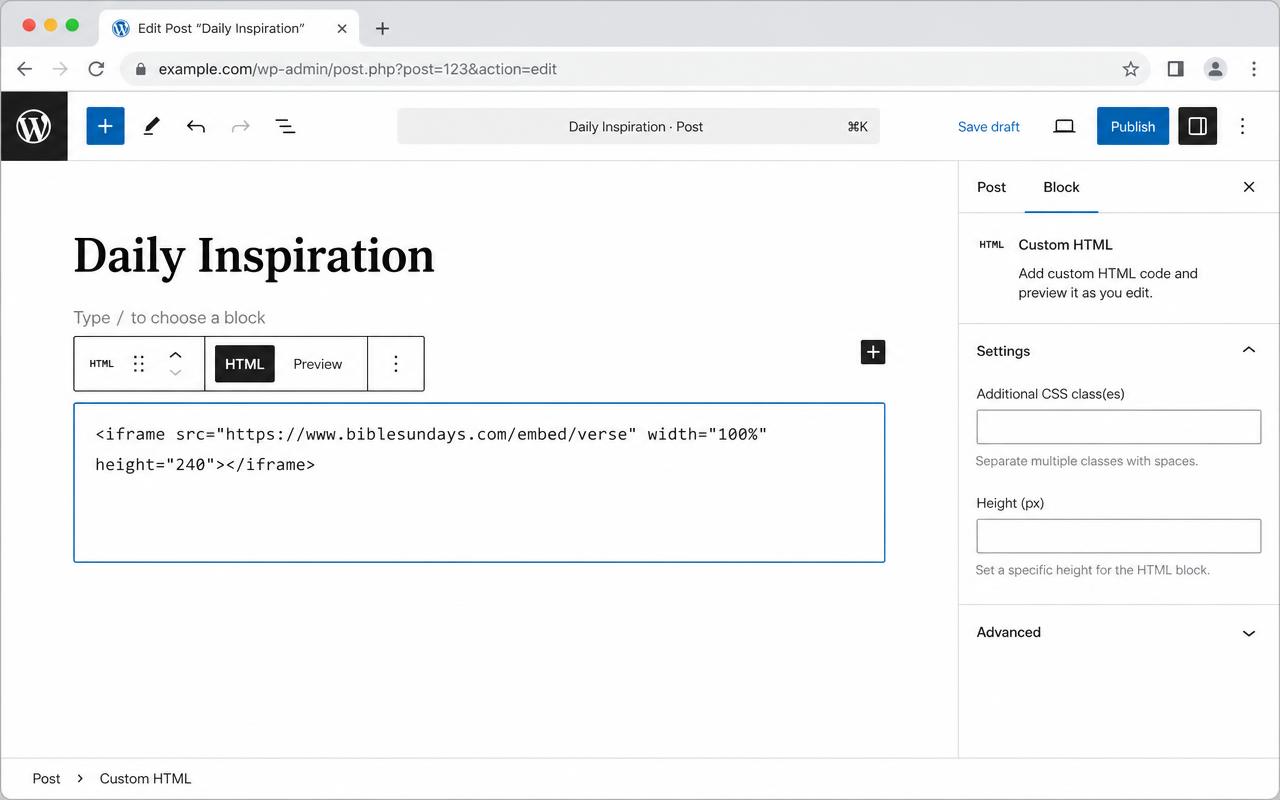
The embed code sitting in the Custom HTML block, HTML tab selected. - 3
Publish and check the live page
Hit Preview to confirm the verse renders, then Update or Publish. The verse rotates on its own each day — you never have to edit the page again.
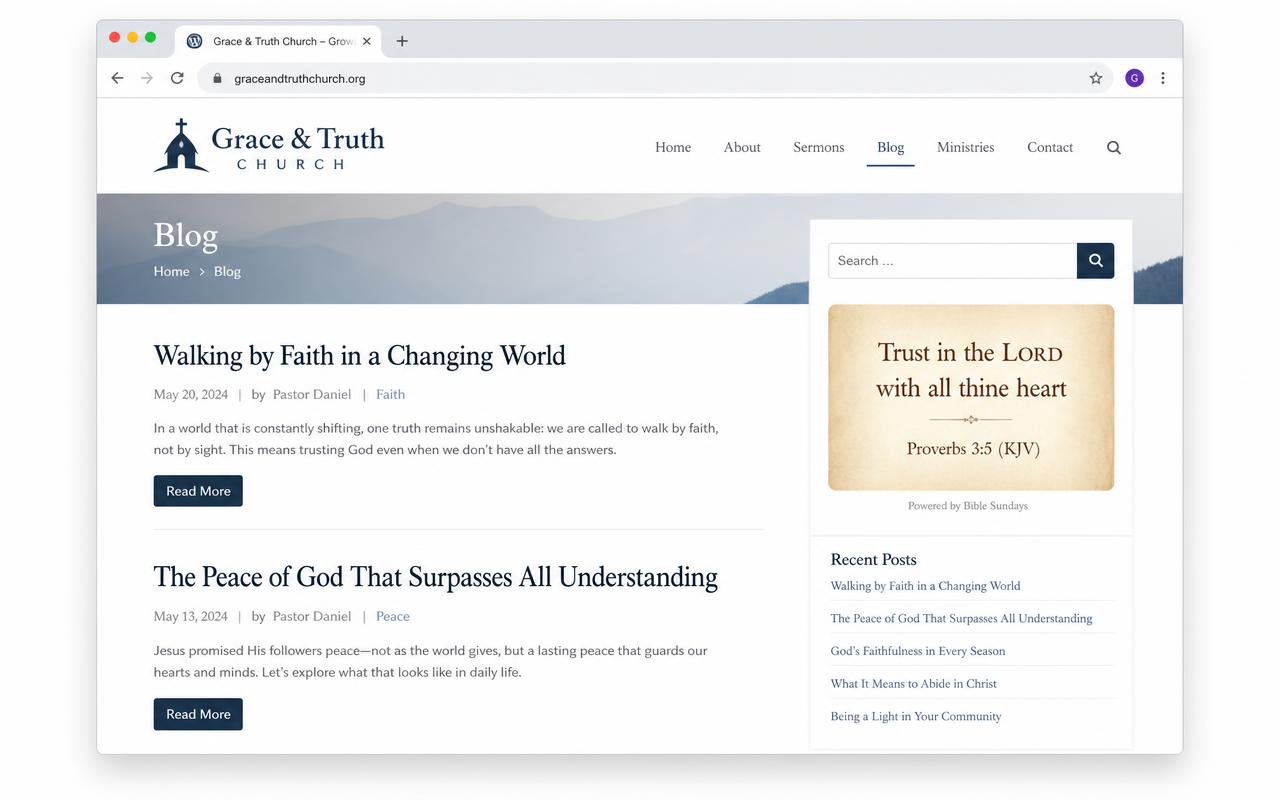
The daily KJV verse live in a WordPress sidebar.
The short version: WordPress in 5 steps
- 1
Copy the embed code
Choose a theme on the widget builder and click Copy embed code.
- 2
Open the page or widget area
Edit the page, post, or go to Appearance → Widgets for a sidebar or footer placement.
- 3
Add a Custom HTML block
In the block editor click the + button, search for 'Custom HTML' and insert it. In the Classic Editor, switch to the Text tab instead.
- 4
Paste the iframe
Paste the copied code into the Custom HTML block exactly as it is — do not reformat it.
- 5
Preview and publish
Click Preview to confirm the verse renders, then Update or Publish the page.
WordPress specifics worth knowing
- WordPress.com free plans strip iframes. You need the Business plan, or a self-hosted WordPress.org site, for custom HTML.
- If you use Elementor, drag in the HTML widget rather than the Text Editor widget — the Text Editor sanitises iframes.
- Caching plugins (WP Rocket, LiteSpeed) do not affect the widget: the verse is rendered inside the iframe by our server, not yours.
- Set width to 100% so the widget stays responsive inside narrow sidebars.
Why this widget
No plugin, no account
One line of HTML. Nothing to install, nothing to keep updated, no API key.
No ads or trackers
The frame sets no cookies and loads no third-party scripts onto your visitors.
Public-domain KJV
Every verse is the King James Version, free to quote and republish with no licence.
WordPress widget questions
Do I need a Bible verse plugin for WordPress?
No. The widget is a plain iframe, so it works in any WordPress theme without a plugin, an API key, or an account. Fewer plugins also means less to keep updated.
Will it work in my sidebar?
Yes. Go to Appearance → Widgets, add a Custom HTML widget to the sidebar or footer area and paste the code. Leave the width at 100% so it fits narrow columns.
Does the verse change automatically?
Yes if you pick the daily mode — it rotates once every day. Random mode picks a new verse on every page load, and fixed mode always shows the reference you chose.
WordPress setup FAQ & troubleshooting
The blockers people hit most often when embedding the KJV verse widget on WordPress.
Why does WordPress strip my iframe when I save the page?
WordPress.com free, Personal and Premium plans remove iframes for security. Custom HTML embeds need the WordPress.com Business plan or a self-hosted WordPress.org install. On self-hosted sites, iframes are only stripped if your user role is below Editor or a security plugin such as Wordfence is filtering post content.
Which block should I paste the code into?
Use the Custom HTML block in the block editor. Do not use the Paragraph block — it escapes the HTML and shows the raw code as text. In the Classic Editor, switch from the Visual tab to the Text tab before pasting.
The verse widget shows a blank white box. How do I fix it?
A blank frame almost always means the height is too small or a plugin is blocking third-party frames. Set height to at least 240 pixels, and check whether a security or privacy plugin (for example a cookie-consent blocker) is holding the iframe until consent is given.
How do I add the verse to my sidebar or footer?
Go to Appearance → Widgets, add a Custom HTML widget to the sidebar or footer area, paste the embed code and click Update. Keep width at 100% so it fits a narrow column, and reduce height to about 200 pixels for compact sidebars.
Does it work with Elementor, Divi or Beaver Builder?
Yes. In Elementor use the HTML widget, in Divi use the Code module, and in Beaver Builder use the HTML module. Avoid Text Editor modules in all three — they sanitise iframe tags on save.
Will caching or a CDN break the daily verse?
No. WP Rocket, LiteSpeed, W3 Total Cache and Cloudflare all cache your page HTML, but the verse itself is rendered by our server inside the iframe, so it still updates every day even when your page is served from cache.
Is the widget mobile responsive?
Yes. Leave width at 100% and the frame shrinks to the container. If your theme forces a fixed width, wrap the iframe in a div with style="max-width:560px;margin:0 auto;".
Does the widget slow down my site or affect Core Web Vitals?
The embed code includes loading="lazy", so the frame is only fetched when it scrolls into view. It loads no scripts on your page, sets no cookies and adds no render-blocking requests.
Install guides for other platforms
Not listed? Any platform that allows custom HTML works — see the main widget page or the church resource hub.