Embed a daily KJV verse on Wix in three clicks
Wix handles the widget through Embed a Widget / Embed HTML. Paste the iframe into the HTML box, drag the frame to the size you want, and publish.
What it looks like
Live preview of the daily verse in the paper theme. Light and dark themes are available in the builder.
The code to paste into Wix
<!-- Bible Sundays KJV verse widget — free, public domain -->
<iframe src="https://www.biblesundays.com/embed/verse?mode=daily&theme=paper&via=widget" title="KJV Bible Verse — Bible Sundays" width="100%" height="240" style="border:0;max-width:560px;" loading="lazy"></iframe>
<a href="https://www.biblesundays.com/?utm_source=widget&utm_medium=embed&utm_campaign=widget-widget" target="_blank" rel="noopener" style="display:block;margin-top:6px;font-size:12px;line-height:1.4;color:#6b7280;text-decoration:none;text-align:center;max-width:560px;">biblesundays.com</a>
Goes into an Embed HTML element (Add → Embed Code → Embed HTML).
Video tutorial: adding the Bible verse widget to Wix
A silent 26-second screencast of the exact three screens. The full transcript is below the player if you would rather read it.
Transcript
- 0:00What you are installing
- Add a free KJV Bible verse widget to Wix. The verse is public domain King James text, there is no app to install from the Wix App Market, and the whole job takes about two minutes.
- 0:04Step 1 — Add, Embed Code, Embed HTML
- In the Wix Editor open Add Elements, choose Embed Code, then choose Embed HTML. Drag the new element onto the section where you want the verse to appear. Wix ADI sites use the same item under Add, then Embed.
- 0:11Step 2 — Choose “Code” and paste the iframe
- Click Enter Code on the element and select the Code option — not Website Address. Paste the iframe and press Apply. The widget is served over HTTPS, which is what Wix requires for embedded HTML.
- 0:18Step 3 — Resize, then publish
- Drag the handles until the verse fits without an inner scrollbar, roughly five hundred and sixty by two hundred and forty pixels. Switch to the mobile editor and size it again there, because Wix keeps the two layouts independent. Then click Publish.
- 0:23That's it
- Your verse now updates itself every day. You can change the theme, the size and the verse mode in the widget builder at biblesundays.com/embed.
Step by step with screenshots: adding the verse widget to Wix
Three screens, about two minutes, no plugin or account. Each screenshot shows exactly what you should be looking at in Wix.
- 1
Add → Embed Code → Embed HTML
In the Wix Editor open Add Elements, choose Embed Code, then Embed HTML. Drag the new element onto the section where you want the verse. Wix ADI sites use the same item under Add → Embed.
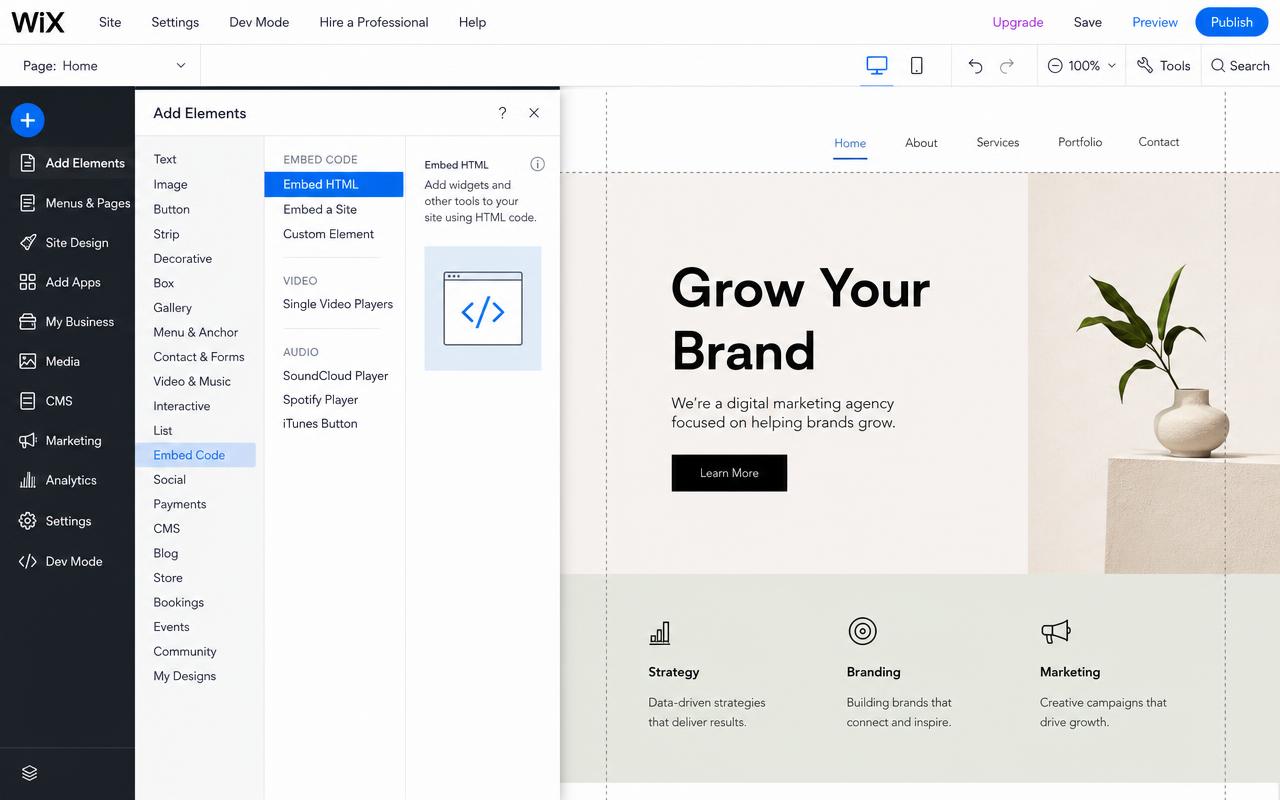
Add Elements → Embed Code → Embed HTML in the Wix Editor. - 2
Choose “Code” and paste the iframe
Click Enter Code on the element, select the Code option (not Website Address), paste the iframe and press Apply. The widget is served over HTTPS, which Wix requires.
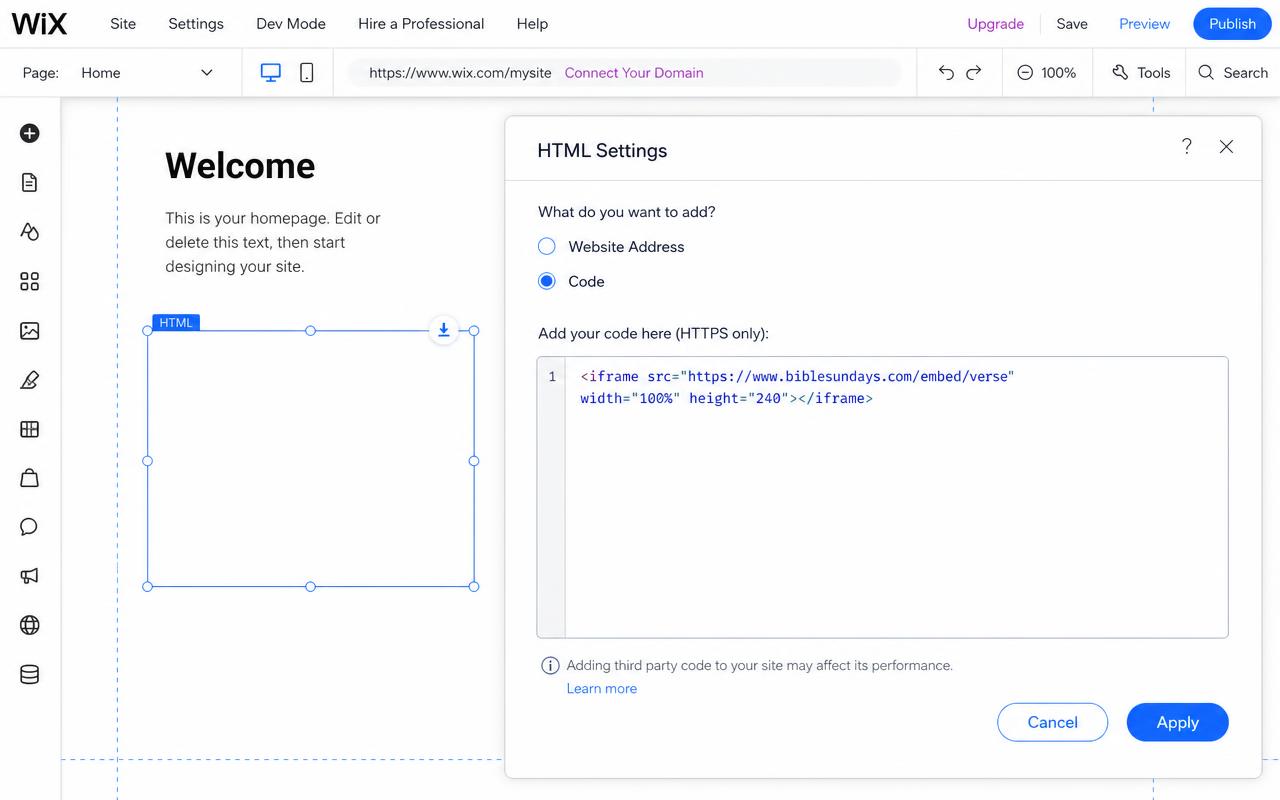
The HTML Settings box with the Code option and the pasted iframe. - 3
Resize, then publish
Drag the handles until the verse fits without an inner scrollbar — roughly 560 × 240 px. Switch to the mobile editor and size it again there, since Wix keeps the two layouts independent, then click Publish.
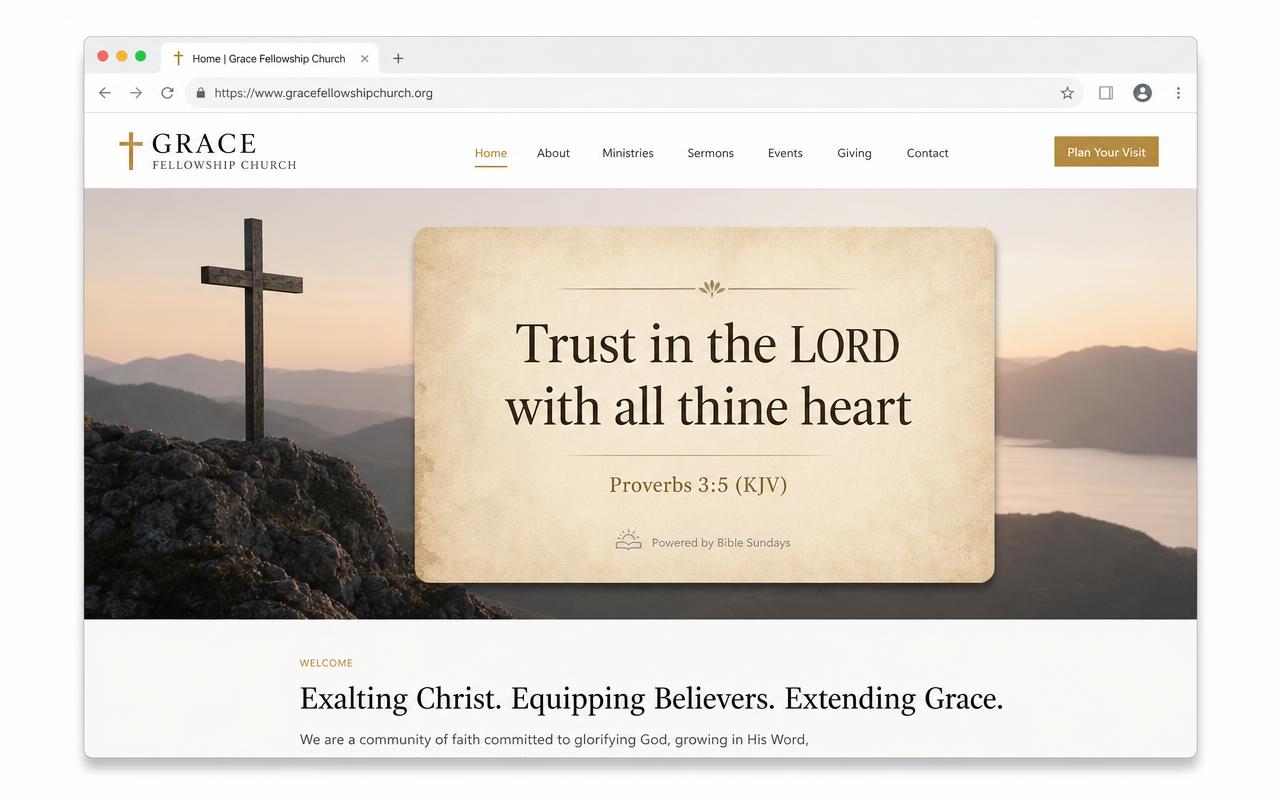
The finished widget on a published Wix church homepage.
The short version: Wix in 5 steps
- 1
Copy the embed code
Choose a theme on the widget builder and copy the iframe snippet.
- 2
Add an embed element
In the Wix Editor click Add Elements → Embed Code → Embed HTML.
- 3
Paste the code
Click 'Enter Code' on the new element and paste the iframe into the Code box, then press Apply.
- 4
Resize the frame
Drag the element's handles until the verse fits without a scrollbar — around 560 x 240 pixels works well.
- 5
Publish
Click Publish and check the live site on desktop and mobile.
Wix specifics worth knowing
- Wix embeds do not auto-resize, so set the element height slightly taller than the verse to avoid an inner scrollbar.
- Switch to the mobile editor and adjust the element separately — Wix keeps desktop and mobile sizes independent.
- Wix ADI sites support the same element under Add → Embed.
Why this widget
No plugin, no account
One line of HTML. Nothing to install, nothing to keep updated, no API key.
No ads or trackers
The frame sets no cookies and loads no third-party scripts onto your visitors.
Public-domain KJV
Every verse is the King James Version, free to quote and republish with no licence.
Wix widget questions
Does the Wix free plan support the widget?
Yes. The Embed HTML element is available on free Wix sites, though free sites also display the Wix banner.
Why is there a scrollbar inside the widget?
The Wix embed element is fixed height. Drag it a little taller — roughly 240 pixels — and the scrollbar disappears.
Can I use it in a repeating section or footer?
Yes, the element can be placed anywhere on the canvas, including footers and strips.
Wix setup FAQ & troubleshooting
The blockers people hit most often when embedding the KJV verse widget on Wix.
Which Wix element do I need to embed the verse?
Add → Embed Code → Embed HTML (also called "Embed a Widget"). Choose the Code option inside the panel and paste the iframe. The plain HTML element or a text box will not run an iframe.
Why is my Wix embed showing an empty grey box?
The Wix editor renders HTML embeds as a placeholder while you edit. Click Preview or publish the site and the verse appears. If it is still empty on the live site, resize the embed box — Wix crops the iframe to the box, so the box must be at least as tall as the widget.
Do I need a paid Wix plan to embed HTML?
The HTML embed element works on free Wix sites, but free sites carry the Wix banner and use a wixsite.com address. Any paid Premium plan with a connected domain works without changes to the embed code.
The widget is cut off at the bottom — how do I fix it?
Wix does not auto-resize embeds. Drag the bottom handle of the HTML element until the full verse and the attribution line are visible, usually around 260–300 pixels tall, then check the mobile editor separately.
How do I make it look right on mobile in Wix?
Switch to the mobile editor, select the embed and set its width to full-width, then increase the height slightly — verses wrap onto more lines on narrow screens. Mobile sizing in Wix is stored independently from desktop.
Can I put the verse in the header, footer or on every page?
Yes. Right-click the embed element and choose "Show on all pages", or place it inside the footer section so it appears site-wide without pasting the code again.
Will the Wix cookie banner block the widget?
Only if you classify the embed as a marketing or analytics element in Wix's cookie settings. The widget sets no cookies and does no tracking, so it can safely stay in the essential category and load immediately.
Does the verse update automatically on a Wix site?
Yes. In daily mode the verse changes once per day, served from our side, so you never need to republish your Wix site to refresh it.
Install guides for other platforms
Not listed? Any platform that allows custom HTML works — see the main widget page or the church resource hub.